
Event Troubleshooting
No events appear
Section titled “No events appear”- Confirm Settings > Kleis for Planning Center says connected.
- Confirm an event instance is current or upcoming in the connected Planning Center organization.
- Confirm the Church Center visibility is Published or Featured.
- Clear the Link only checkbox for events that belong on the public calendar.
- Remove Events Template tag and featured filters temporarily.
- Preview the public page. Source changes can take several minutes to appear.
- Check the browser console and WordPress Site Health for REST or outbound-request errors.
Date or time is wrong
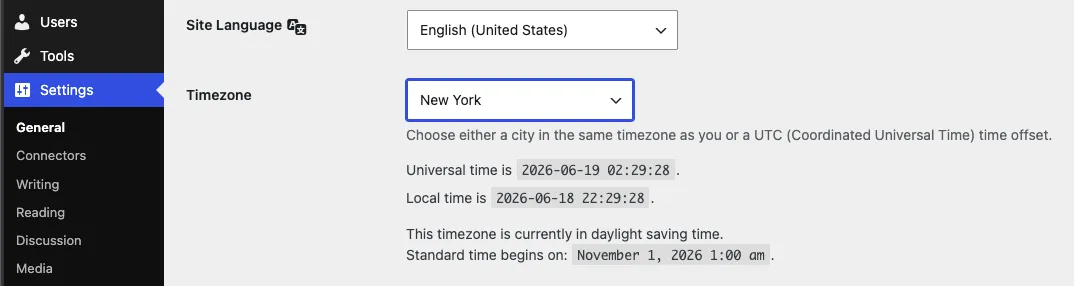
Section titled “Date or time is wrong”- Go to Settings > General in WordPress.
- Choose the site’s named timezone, such as a nearby city, rather than a fixed UTC offset when daylight saving time applies.
- Confirm the start, end, and all-day settings in Planning Center.
- Refresh after the brief Calendar cache expires.
Filters return no results
Section titled “Filters return no results”- Remove all filters to prove events can load.
- Add include tags one at a time and press Enter after each tag token.
- Confirm the tag belongs to the event instance in Planning Center.
- Turn off Featured events only unless the event is explicitly featured.
- Remember that combined filters narrow the result.
- Increase Number of days when matching events occur farther in the future.
Registration link or image is missing
Section titled “Registration link or image is missing”Registration URL comes from the parent Planning Center event. Confirm registration is configured and public there. Event Image comes from the event instance; add or correct the image in Planning Center.
Some child blocks use the primary event when several events share a day. Use Event Day Schedule when every event title needs to appear.
Styling looks wrong
Section titled “Styling looks wrong”- Test with the theme’s default block styles.
- Remove custom Additional CSS temporarily.
- Inspect whether the problem affects the Kleis block, its parent Group, or every similar core block.
- Check the page at desktop and mobile widths.
- For the Calendar, choose explicit accessible colors in the block settings.
Avoid changing plugin build files; an update will replace them. Put overrides in the active theme or child theme.
You should now see: current events under the correct site timezone, expected filter results, and source-provided links and images. Remaining visual problems should be isolated to a specific theme rule or parent block.